
A spreadsheet is a grid or table of rows and columns.
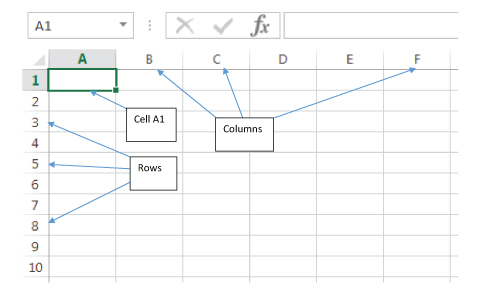
Rows are indicated by numbers 1, 2, 3, 4, and so on
Columns are indicated by letters A,B,C,D, and so on.
When column letters go beyond Z, they will carry on with AA, AB, AC, AD, and so on.
The intersection of a column and a row is called a cell. The cell is referred to by a combination of the column letter and row number where it appears. In the example above, the cell highlighted would be called cell A1. This would be its cell reference.
Files and folders
Each workbook is held on the computer as a single file. A file is the computer equivalent of a paper document containing the information entered.
Each file should be given a meaningful name when created so the user will know what information is contained in it.
To organise files in a logical way, they should be saved in a folder. Again, this will be given a meaningful name to identify what types of files are stored in it.
Within Excel, files and folders are available when either the options Open or Save are selected from the File menu.
Creating a folder
This is accomplished by clicking on the New Folder option and giving it a meaningful name.
Finding a file
If the required file is not immediately visible, the Search tool can be used when Open in selected from the File menu.
Renaming a file
Single click on the filename and press F2. The new name can then be typed in. Press Return to accept the new name or press Escape to cancel the edit.
Sharing a file
Before a file can be shared, it must be in a folder which can be accessed by other people. Right click on the chosen folder and use the Share With option to specify who can access the file.